Set it up once. Then forget it’s there.
Choose a folder in the desktop app and it stays in step on all your computers, and with everyone you share it with. There is no cloud location to set up and no button to press.
Sign up free- Desktop
- Get the apps
01 — How it works
- 01
Pick a folder
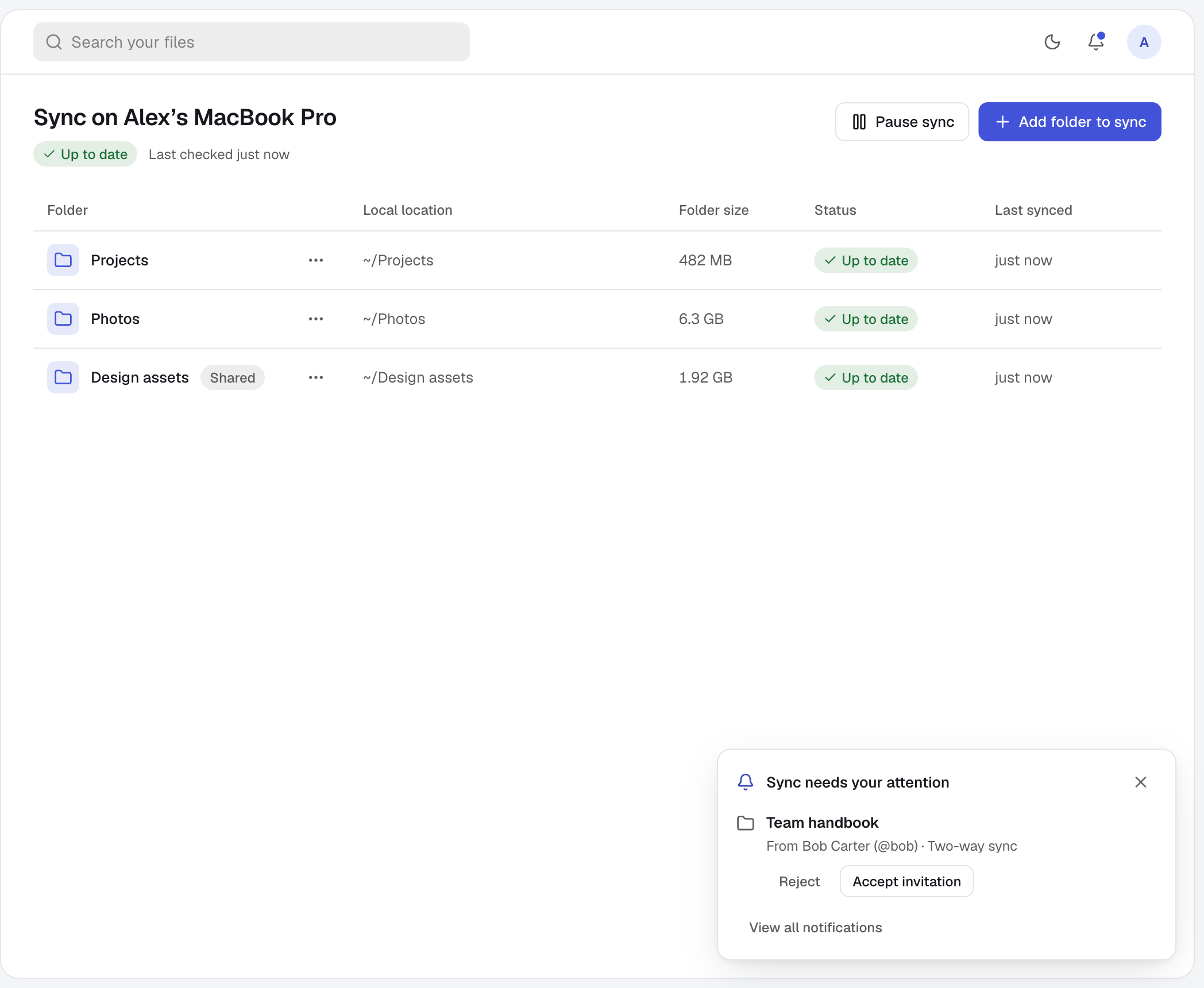
Choose Add folder to sync and pick any folder on your computer. That is the whole setup.
- 02
Keep working
Save, add, rename and delete as you always do. Each change is picked up on its own, and anything done offline goes out when you reconnect.
- 03
It’s everywhere
Your other computers, and everyone you share the folder with, get the change. Each file is checked before it replaces the old one.
02 — A closer look
Sync with other accounts, not just your own computers.
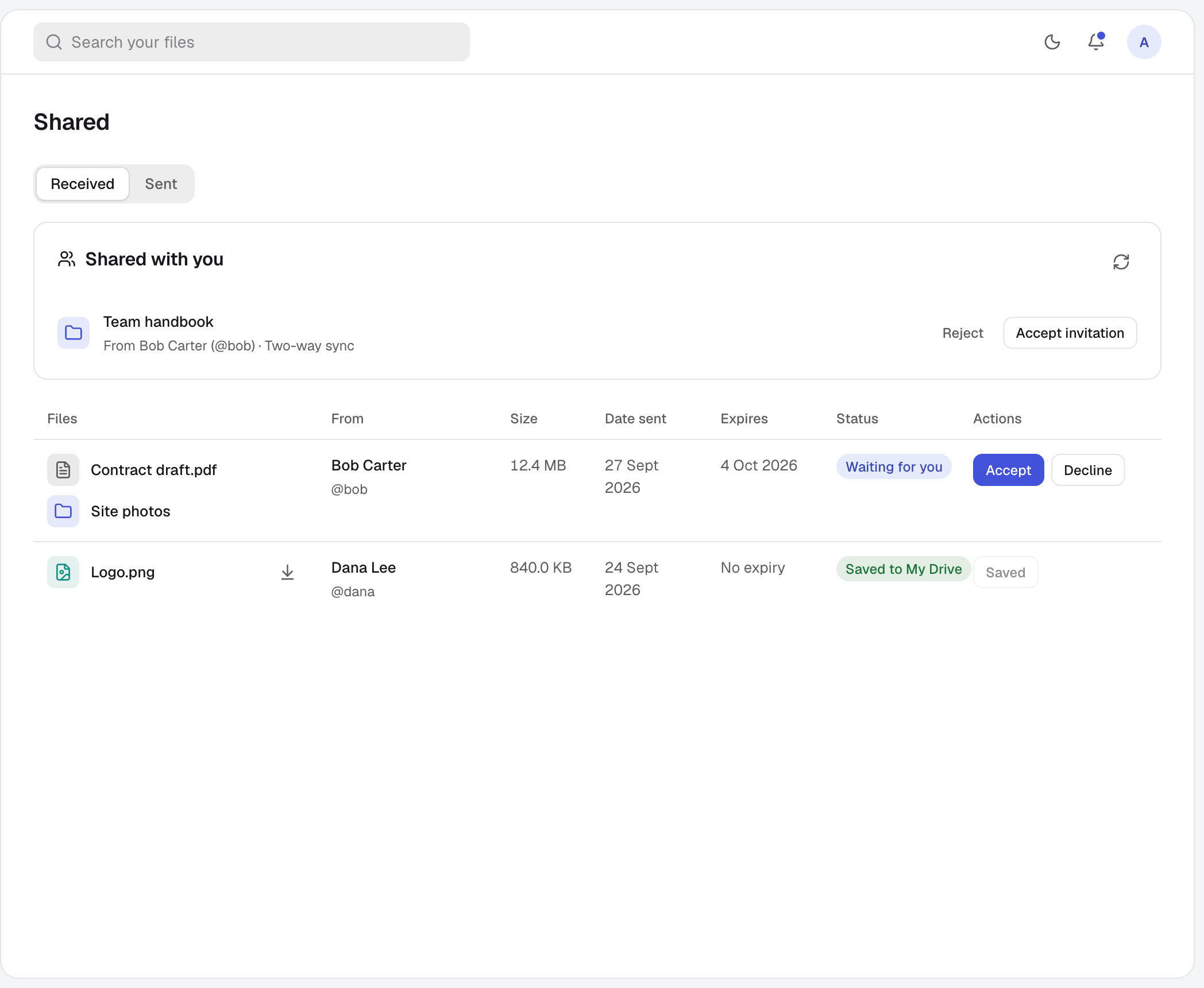
Share a synced folder with a colleague, a family member or your own second account. They accept the invitation and pick a folder on their computer. From then on you all add, edit, rename and delete in the same folder, and only you decide who is in it.
03 — Good to know
- Nothing to press
- No sync button and no schedule. Each folder shows Up to date once every change has arrived.
- Conflicts are safe
- If a file changes in two places at once, both versions are kept and the app asks you to review them.
- Invite anyone
- Invite any harbor0 account by email or username, with up to 20 active invitations per owner.
- Owner’s storage
- A shared folder counts only against its owner’s storage, whoever adds the files.
- Leaving is clean
- When access is removed, sync stops and the files already on each computer stay there.
- Several accounts
- Sign in to a different account on the same computer and it keeps its own sync folders. Sign back in and yours are as you left them.
- Your rules
- Pause sync whenever you like, and leave chosen subfolders out.
- Between computers
- The cloud holds a temporary copy only until every computer has the file. To keep one in the cloud too, use Copy to cloud in My Drive, or back the folder up.
04 — Questions
Do I need the desktop app?
Yes, on every computer that syncs, including those of the people you share with. Synced folders can also be browsed on the web under My Drive.
Does the person I share with need an account?
Yes. Invite them by the email address or username of their harbor0 account. They accept in the desktop app.
Can two harbor0 accounts use one computer?
Yes, one signed in at a time. Each account keeps its own sync folders, so choose a different local folder for each.
Are deletions synced too?
Yes. Deleting a file removes it on your other computers and for everyone in a shared folder.
05 — More of harbor0